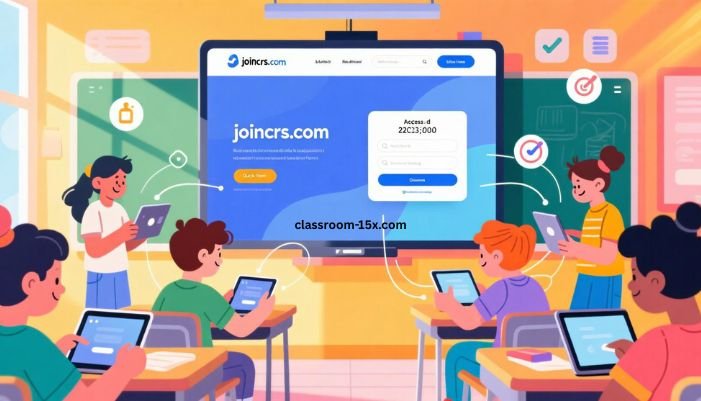
JoinCRS.com is the go-to platform for students to access interactive lessons created through Classroomscreen. Instead of creating accounts or logging in, students simply enter a teacher-provided numeric or QR code to instantly connect to live classroom activities. This setup makes learning seamless, whether in-person, hybrid, or remote. Students can participate in polls, quizzes, timers, and other interactive widgets, all in real-time, without unnecessary technical barriers.
For teachers, JoinCRS.com simplifies classroom management by allowing quick participation and immediate insight into student understanding. Teachers can track responses, adjust pacing, and engage students effectively, all while maintaining privacy and security. This article is a complete guide on how to use JoinCRS.com, including step-by-step instructions for both students and teachers, practical classroom tips, troubleshooting advice, and best practices to maximize engagement and learning outcomes.
What is JoinCRS.com?
JoinCRS.com is a student entry page for Classroomscreen. Teachers create an interactive screen, add widgets like polls, quizzes, timers, or smiley feedback, and generate a short code. Students enter this code on JoinCRS.com to join the session instantly. The simplicity of this process ensures students can focus on learning rather than navigating complicated logins or software installations.
Why Teachers and Schools Use JoinCRS.com
-
Fast access: Students join lessons quickly with a short code.
-
Real-time formative feedback: Teachers can monitor comprehension through polls, quizzes, and interactive activities.
-
Device-friendly: Works on laptops, tablets, and smartphones with any modern browser.
-
Reduced administrative load: No student accounts are needed, making it easy to implement even in large classes.
-
Hybrid-ready: Perfect for classrooms with a mix of in-person and remote students.
Step-by-Step Guide for Students
-
Receive the code from your teacher (numeric or QR).
-
Open a browser and go to JoinCRS.com.
-
Enter the code and press Enter to join the live lesson.
-
Participate in activities such as polls, quizzes, smileys, and timers as directed.
Students immediately see the teacher’s screen and can engage without delay. No login or account is required, making it an efficient solution for any classroom setting.
Step-by-Step Guide for Teachers
-
Log in to Classroomscreen and create a new screen.
-
Add widgets like polls, quizzes, timers, QR codes, or text instructions.
-
Start the screen and share the join code or QR code with your students.
-
Monitor participation in real-time and view aggregated student responses.
-
End the session when complete to close access.
Teachers maintain full control over the activity while providing students with a smooth, code-based entry system.
Safety and Privacy Considerations
-
No student account required – reduces data collection and privacy risks.
-
Controlled access – only students with the code can join the screen.
-
Follow school policies – always align with district guidelines for third-party tools.
-
Secure connection – JoinCRS.com operates over HTTPS, ensuring data security.
-
Responsible sharing – avoid posting codes publicly to prevent unauthorized access.
Practical Classroom Tips
-
Pre-share expectations – let students know when the code will be active and what they should do.
-
Use QR codes – especially useful for younger learners or large classrooms to speed up joining.
-
Test ahead of time – preview the lesson on a student device to ensure everything works correctly.
-
Backup plan – have an offline activity ready in case of network or browser issues.
-
Accessibility check – ensure text and instructions are clear and visible on all devices.
Troubleshooting Common Issues
-
Join code doesn’t work – confirm the code is typed correctly and the session is active.
-
Nothing appears after joining – refresh the page or re-enter the code.
-
Slow or laggy responses – close background tabs, switch browsers, or check your internet connection.
-
Wrong class joined – leave the screen and rejoin with the correct code.
-
Browser incompatibility – use Chrome, Edge, Safari, or Firefox for the best experience.
Best Classroom Use Cases
-
Exit tickets – quick polls at the end of the lesson to assess understanding.
-
Mood checks – smileys or quick polls to gauge student confidence or mood.
-
Formative assessments – short quizzes to identify learning gaps mid-lesson.
-
Think-pair-share starters – gather individual responses and then discuss in pairs or groups.
-
Timed activities – use the built-in timer for synchronized group tasks.
FAQs – People Also Ask
Q1: How do I join a Classroomscreen lesson using JoinCRS.com?
Go to JoinCRS.com, enter the code provided by your teacher, and press Enter to join the session.
Q2: Do I need an account to use JoinCRS.com?
No. Students do not need to sign up or log in. Only the teacher needs an account to create and manage screens.
Q3: What if my join code doesn’t work?
Check for typos, refresh the page, or ask your teacher if the screen is still active or a new code is needed.
Q4: Can I use JoinCRS.com on any device?
Yes. It works on computers, tablets, and smartphones with modern browsers like Chrome, Edge, Safari, or Firefox.
Q5: Is JoinCRS.com safe for students?
Yes. It doesn’t require personal information, and teachers control access through codes. Always follow your school’s policies for online tools.
Teacher Best Practices Checklist
-
Prepare the screen in advance and test on a device.
-
Share codes privately with students and set clear expectations.
-
Use short, interactive tasks to maintain engagement.
-
Monitor student responses and adjust lessons in real-time.
-
Keep a backup activity ready for technical issues.
Baddies Hub The Complete Guide: What It Is and How to Use It
Conclusion
JoinCRS.com is a simple, effective tool for engaging students in interactive lessons with minimal friction. By using a short join code, students can immediately access polls, quizzes, timers, and other activities on Classroomscreen without creating accounts. Teachers benefit from real-time insights into student understanding while keeping control over access and privacy. It works on virtually any device and is ideal for in-person, hybrid, or remote classrooms.
For maximum effectiveness, teachers should plan screens in advance, test them on student devices, and share codes securely. Students should use supported browsers, enter codes carefully, and follow classroom instructions. With proper use, JoinCRS.com enhances engagement, speeds up formative assessments, and allows teachers to focus on teaching rather than technical issues. It’s a modern solution that blends convenience, interactivity, and safety, helping classrooms run smoothly and effectively.